 Unstash
Guide
How to export your Twitter (X) bookmarks
X has no export button for bookmarks. Here is what each route gives you, and the steps for the one that works.
Last updated: November 5, 2026
The short answer
Install the free X Bookmarks Exporter for Chrome, open it while you're signed in to X, and download your bookmarks as HTML, CSV or JSON. It takes a few minutes and doesn't need an Unstash account. Your bookmarks on X stay unchanged.
Why the X data archive isn't enough
X lets you request an archive of your account: open Settings and privacy, then Account, then Your X data, verify your identity and choose Request data. X emails you when the file is ready to download.
X's help page lists what that archive contains: your profile, posts, Direct Messages, media, followers, accounts you follow, Lists, ad data and more. Bookmarks aren't among the items it names, so don't rely on the archive if bookmarks are what you're after.
Export with the X Bookmarks Exporter
Install the extension
Add the X Bookmarks Exporter from the Chrome Web Store, then sign in to X in Google Chrome.
Open it and choose how many bookmarks to read
Open the exporter, review the X access notice, and pick how many bookmarks to load. Your bookmarks appear as cards you can scroll before you download anything.
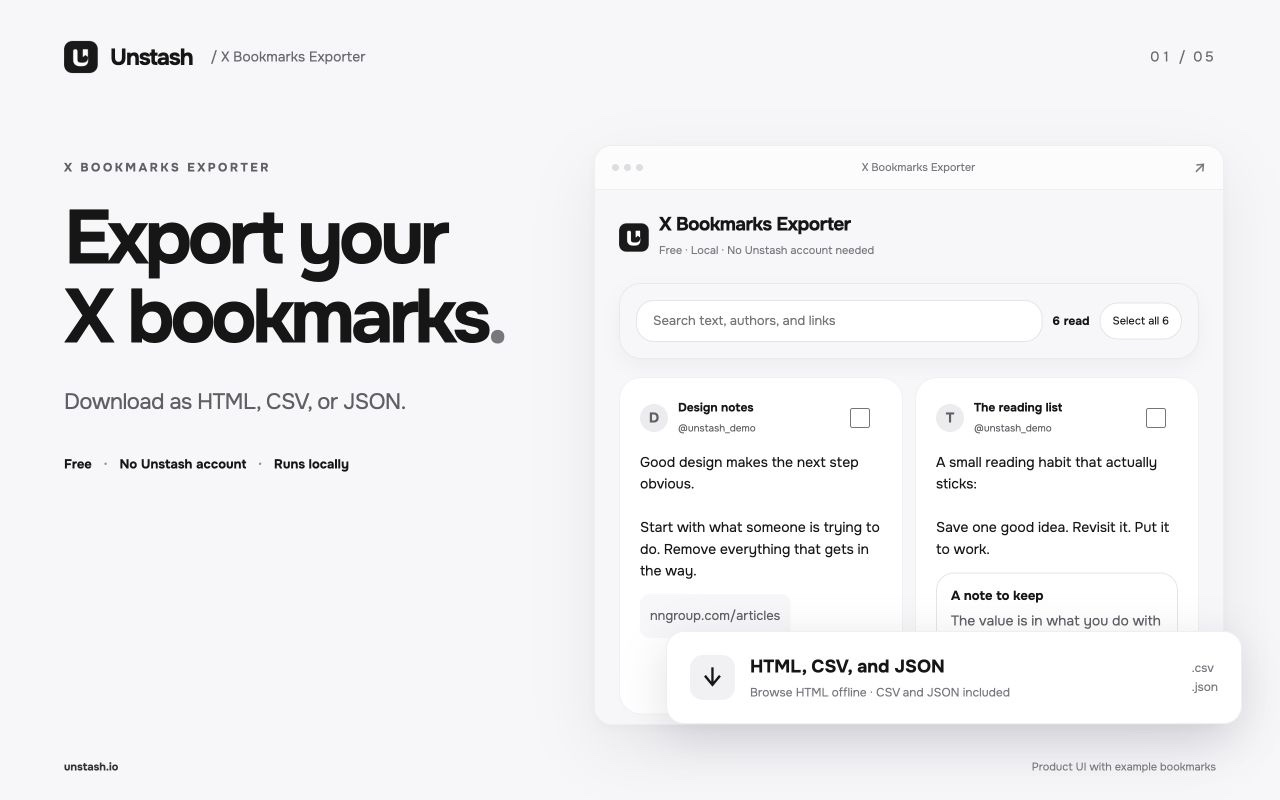
Preview your bookmarks as cards before you download. Narrow it down, or keep everything
Search by words, authors or links, then export everything, only the search results, or a selection you pick by hand.
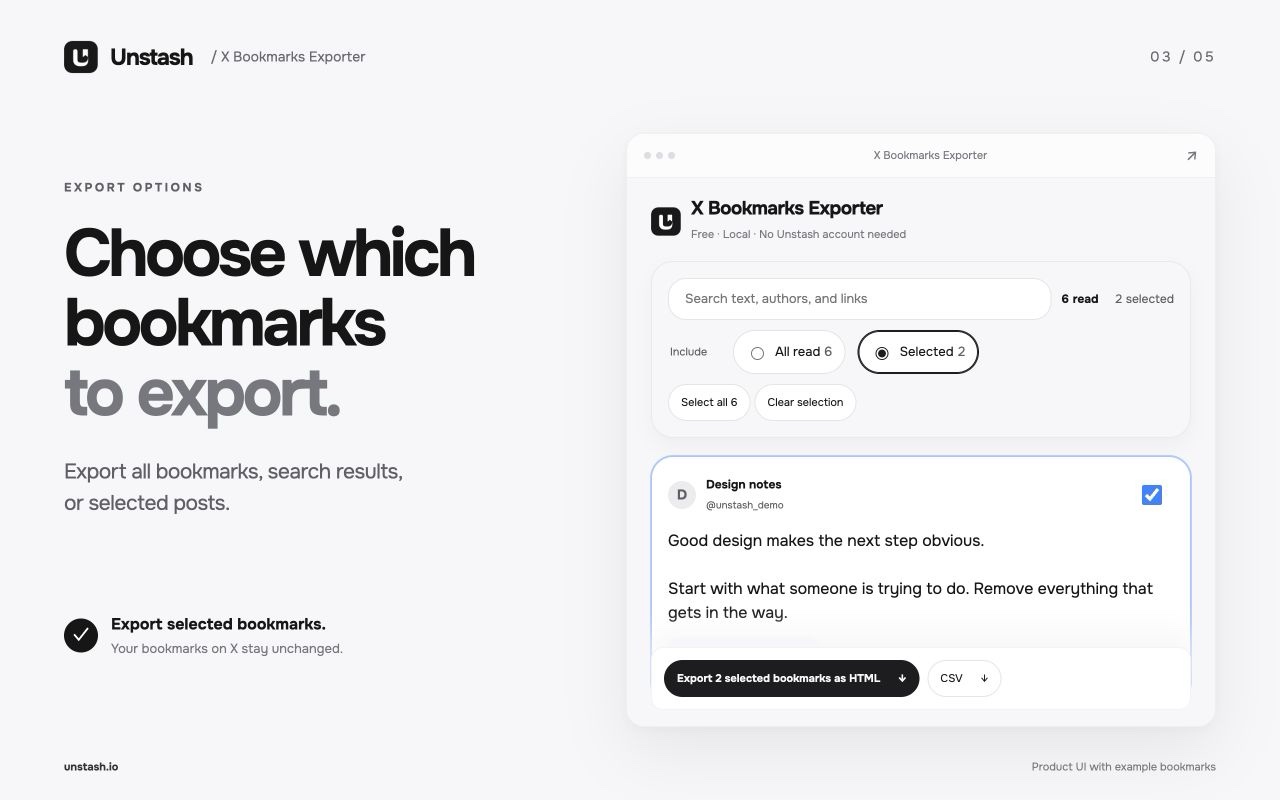
Export everything, a search, or hand-picked bookmarks. Pick a format and download
Choose HTML, CSV or JSON. The file name includes your X username, when available, and the export date.
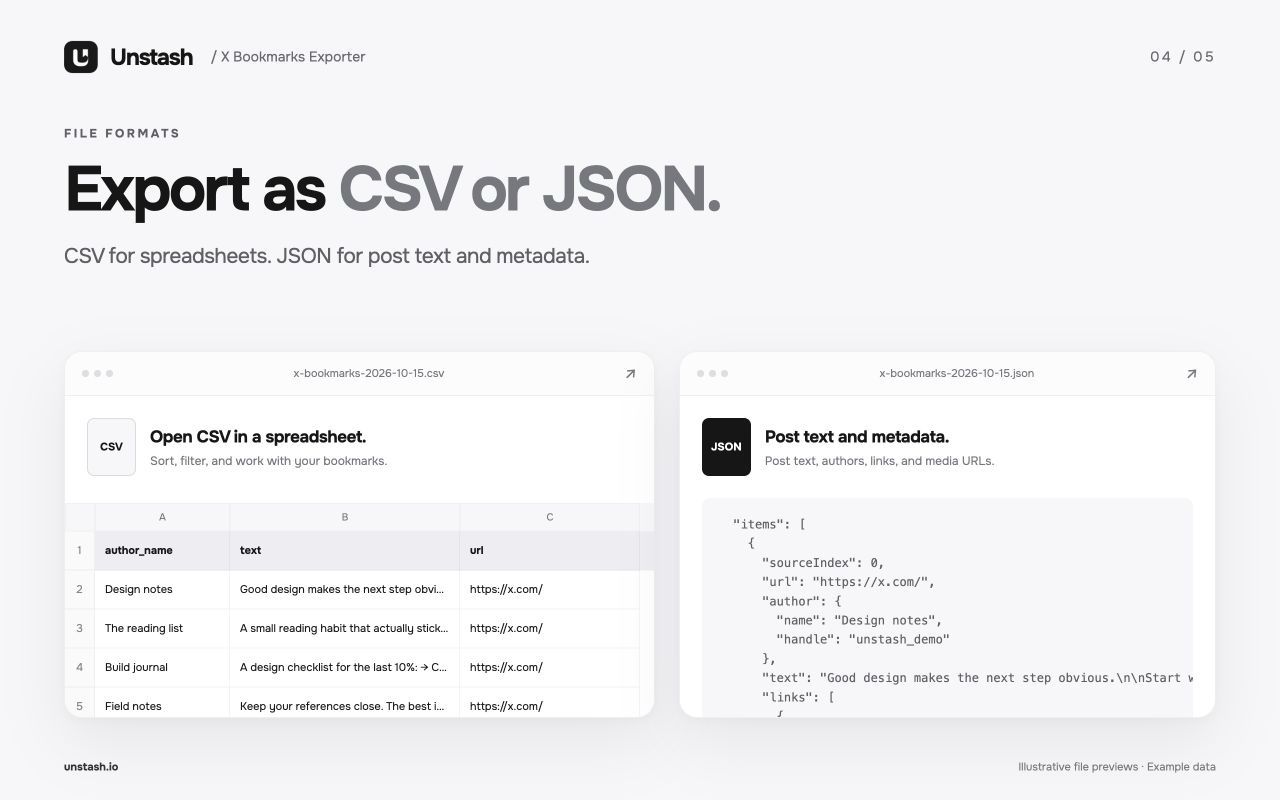
HTML to read, CSV for spreadsheets, JSON for other tools.
Which format to choose
- HTML is the one to open and read. It's a single page with your bookmarks as cards, a search box that works offline, and long posts you can expand in place. It also embeds the original JSON, which you can extract with one click.
- CSV opens in Excel, Numbers or Google Sheets.
- JSON keeps the original data for other tools and scripts.
Text and search in the HTML file work without a connection. Images and linked media load when you're online.
Open a file you already exported
The X Bookmarks Viewer opens a JSON or CSV export in your browser. You can search, select and download a filtered copy, and the file stays on your device.
Do something with your export
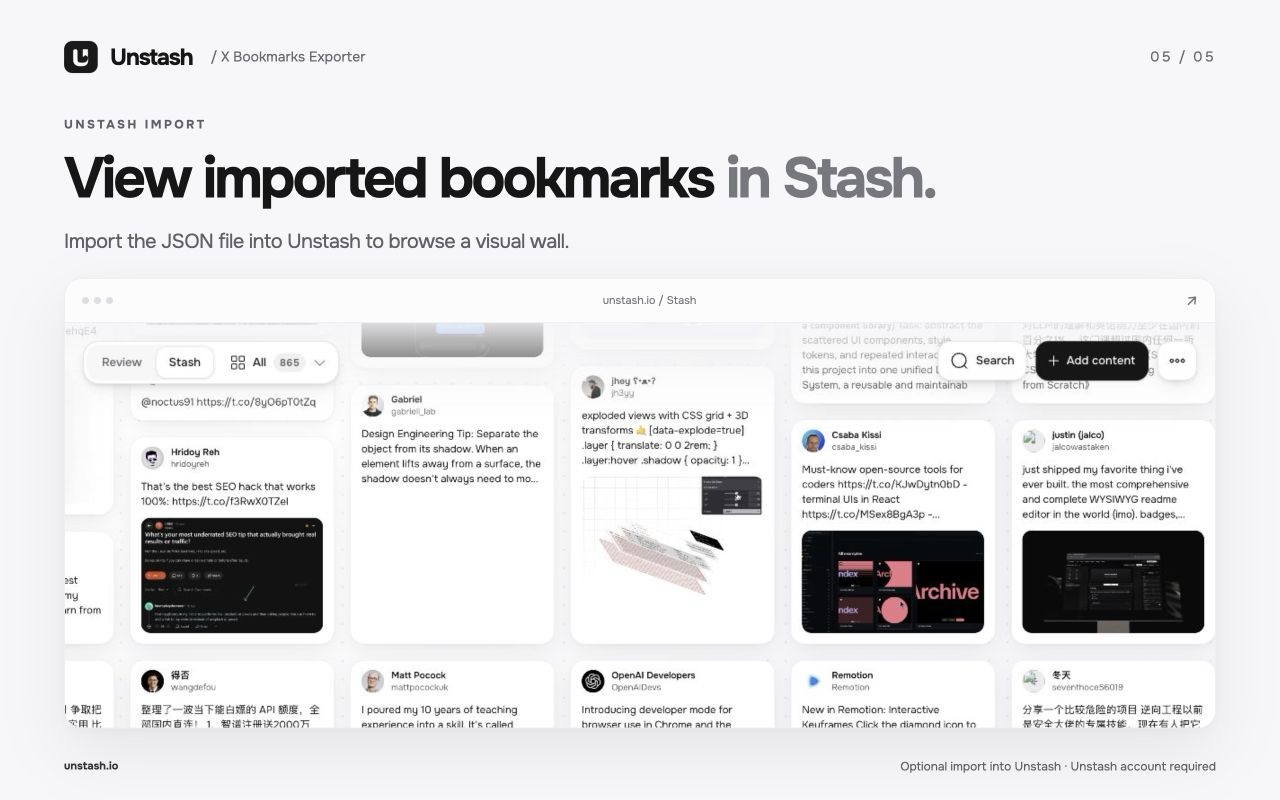
An export is a backup. If you want to work through the pile, you can import the file into Unstash, which shows your bookmarks one at a time so each one gets a decision: Keep it in a Collection, bring it back Later, mark it Done, or Remove it. Importing a file is optional, and reviewing needs a trial or Pro.